
© 2026 Geekify. All rights reserved.
© 2026 Geekify. All rights reserved.
Category: Photo & Data Recovery , 02 February 2026 21:22 PM
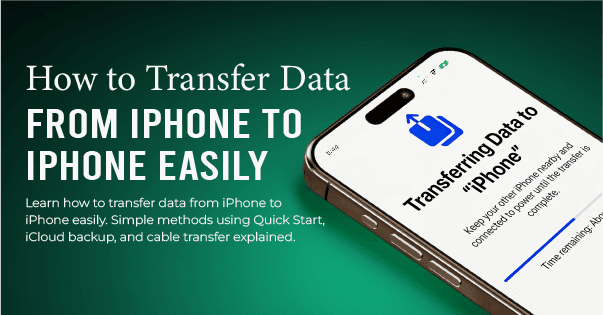
When you buy a new iPhone, one of the first things you want to do is move your old data to the new device. Your photos, contacts, messages, apps, and settings are very important. No one wants to lose them. That is why learning how to transfer data from iPhone to iPhone is so useful.
Many people feel nervous about this process. They think it is difficult or risky. But the truth is, Apple has made it very easy. There are also other safe methods you can use. In this blog, we will explain how to transfer data, how to transfer to a new iPhone, and how to transfer photos from iPhone to iPhone in a very simple way.
This guide is written for beginners. You do not need to be a tech expert. Just follow the steps calmly, and your data will move safely.
Your iPhone keeps many important parts of your daily life, such as photos, videos, contacts, messages, apps, and personal settings. These are not just files, they are memories and useful information you use every day. Photos and videos save special moments, contacts help you stay connected with people, and apps store your work, chats, and personal data. If these things are lost, it can cause stress and waste a lot of time trying to recover them.
When you buy a new iPhone, you naturally want it to feel like your old one. You want to see the same photos, use the same apps, and keep all your messages and settings. That is why learning how to transfer photos from iPhone and other data is very important. If the transfer is not done properly, some files may be missing or deleted. A correct transfer helps you move to your new phone smoothly without losing your memories or important information.
Before starting the transfer, do these simple things:
Charge both iPhones fully
Turn on Wi-Fi
Make sure both iPhones are updated to the latest iOS
Keep both phones close to each other
Sign in with the same Apple ID
Make a backup if possible
Then, look at the best ways to transfer data from iPhone to iPhone.
Quick Start is the simplest and most trusted way to move your data from an old iPhone to a new one. Apple created this feature to make the transfer process easy for everyone, even for people who are not good with technology. You do not need a computer or extra apps. Both phones only need to be close to each other and connected to Wi-Fi. This method is perfect for users who want to know how to transfer photos from iPhone to iPhone along with other important data.
1. Easy setup process:
You just turn on the new iPhone and place it near the old one. The phones guide you step by step, so there is no confusion.
2. Moves almost all data:
It transfers photos, videos, contacts, messages, apps, and settings, so your new iPhone feels just like your old one.
3. No computer needed:
You do not need a laptop or a cable. Everything happens wirelessly between the two iPhones.
4. Safe and secure:
This is an official Apple feature, so your personal data stays protected during the transfer.
5. Saves time and effort:
Instead of installing everything again by hand, Quick Start copies your data automatically and quickly.
iCloud Backup is a simple and wireless way to move your data from one iPhone to another. Apple provides iCloud as its official cloud storage service, where your data is saved online and then restored to your new iPhone. This method is very helpful when you do not have your old phone with you or when you want to transfer data without using cables or a computer.
1. Wireless data transfer:
iCloud lets you upload your photos, contacts, messages, apps, and settings to the cloud and then download them to your new iPhone. You do not need a cable or computer for this process.
2. Works even without the old phone nearby:
If your old iPhone is lost, damaged, or already reset, you can still restore your data on the new iPhone using your iCloud backup.
3. Good for photo transfer:
This method is very useful for people who want to learn how to transfer photos from iPhone, because photos and videos are saved and restored automatically.
4. Safe and secure:
Apple uses encryption to protect your data in iCloud, so your personal information stays private and secure.
5. Needs internet and storage:
A strong internet connection is required, and the free iCloud storage is only 5GB. If your data is large, you may need to buy extra storage.
Using a computer is another safe and reliable way to move your data from one iPhone to another. This method uses iTunes on Windows or older macOS, and Finder on newer macOS. It is a good choice for people who do not want to use the internet or who have a large amount of data to transfer.
1. Creates a full backup on your computer:
This method saves a complete copy of your iPhone data on your computer, including photos, messages, apps, and settings. It helps make sure nothing important is left behind.
2. Works without internet:
You do not need Wi-Fi or mobile data for this method. It is useful when your internet is slow or not available.
3. Best for large data:
If your iPhone has many photos, videos, or apps, the computer method is more stable and faster than cloud backup.
4. Safe and controlled transfer:
Your data stays on your computer and is not uploaded online, which is helpful for people who worry about privacy and security.
5. Easy restore to a new iPhone:
After making the backup, you simply connect your new iPhone and restore the saved data, making your new phone look like your old one.
AirDrop is a fast and simple way to send photos and videos from one iPhone to another. This method is best for people who only want to learn how to transfer photos from iPhone to iPhone and do not need to move apps, messages, or settings. It works wirelessly and does not require internet or cables.
1. Best for photo-only transfer:
AirDrop is perfect when you only need to move photos and videos to your new iPhone. It does not copy apps or system data, which makes the process quick and focused.
2. No internet needed:
AirDrop works using Bluetooth and Wi-Fi between the two iPhones, so you do not need mobile data or an internet connection.
3. Quick and easy sharing:
You just select the photos, tap Share, and choose the other iPhone. The transfer usually takes only a few seconds or minutes, depending on the number of photos.
4. Keeps photo quality:
AirDrop sends photos and videos in their original quality, so your pictures do not lose sharpness or detail.
5. Good for small transfers:
This method is ideal when you want to move a few albums or selected photos instead of transferring all data from your old iPhone.
Third-party transfer apps are tools made by other companies that help you move data from one iPhone to another. These apps are usually used with a computer and can be helpful when Apple’s built-in methods do not work properly. They give you more control over what you want to transfer.
1. Move selected data:
These apps allow you to choose what you want to transfer, such as only photos, contacts, messages, or videos. This is useful if you do not want to move everything from your old iPhone.
2. Helpful when Apple methods fail:
If Quick Start, iCloud, or iTunes does not work because of errors or storage problems, third-party apps can be a backup solution.
3. Gives more control:
Unlike Apple’s automatic transfer, these apps let you manage your files and decide which data to copy and which to skip.
4. Works with a computer:
Most of these apps need a PC or Mac to connect both iPhones and complete the transfer safely.
5. Needs careful app choice:
You should always download these apps from trusted companies and avoid unknown or risky software to protect your personal data.
Transferring WhatsApp and app data is very important because these apps store your messages, photos, and personal information. Many users worry that they will lose their chat history or app settings when changing to a new iPhone. The good news is that Apple makes this process simple when you use Quick Start or iCloud backup.
1. WhatsApp needs iCloud backup:
Before switching phones, you should back up your WhatsApp chats to iCloud. When you install WhatsApp on your new iPhone and sign in with the same phone number, your chat history will restore automatically.
2. Most app data transfers automatically:
If you use Quick Start or iCloud, many apps and their data will move to your new iPhone without extra steps.
3. Apps must be downloaded again:
You will need to reinstall apps from the App Store, but your saved data will return after you log in.
4. Keeps your important information safe:
This method helps protect your messages, game progress, and app settings during iPhone transfer to new iPhone.
When transferring data from one iPhone to another, sometimes problems can happen. Luckily, most issues are easy to fix with simple steps.
1. Transfer stuck:
If the transfer stops or freezes, restart both the old and new iPhones.
Make sure both phones are connected to a strong Wi-Fi network.
Try the transfer process again to complete it successfully.
2. Not enough iCloud storage:
Free iCloud storage is only 5GB, so your backup may not fit.
Delete old backups you no longer need to free up space.
You can also buy more iCloud storage for larger backups.
Alternatively, use the computer method to transfer data without iCloud.
3. Photos missing after transfer:
Check if iCloud Photos is turned on.
Look in the hidden album to see if photos are there.
Make sure you are signed in with the same Apple ID on the new iPhone.
These simple steps solve most data transfer problems safely.
Do not turn off phones during transfer
Use trusted Wi-Fi
Do not remove SIM card early
Do not reset old phone until transfer is complete
Always check data after transfer
1. How long does it take to transfer data from iPhone to iPhone?
It usually takes 10 minutes to 1 hour, depending on data size and internet speed.
2. Can I transfer data without iCloud?
Yes, you can use Quick Start or computer backup without iCloud.
3. Is Quick Start safe to use?
Yes, it is Apple’s official and safe method.
4. Can I transfer only photos?
Yes, you can use AirDrop or iCloud Photos to transfer only photos.
5. Will my apps move to the new iPhone?
Yes, apps will download again, and data will be restored if backed up.
6. Do I need the same Apple ID on both phones?
Yes, using the same Apple ID makes the transfer easier and safer.
Learning how to transfer data from iPhone to iPhone makes upgrading to a new phone easy and stress-free. Apple provides several safe methods like Quick Start, iCloud, computer backup, AirDrop, and trusted apps to move your photos, messages, contacts, and settings without losing anything.
Choose the method that suits your needs: Quick Start for ease, iCloud for wireless backup, computer for full control, or AirDrop for photos only. This way, your new iPhone will have all your old data safely.
Our team is always available to assist with your unique tech challenges. If your required service isn’t listed, feel free to get in touch. Geekify offers personalized solutions tailored to your needs. Call, request support, or book an appointment online—we’re here to help!